Pages

Thursday, January 21, 2016

စီးပြားျဖစ္ ကြန္ပ်ဴတာသင္တန္း အုိင္ဒီယာ


Computer Training Business Ideas
Computers are a significant part of everyday life at home and at work. Technology can help you organize your home finances or run your business but only if you know how to use the software, according to online small business resource Entrepreneur.com. A computer training business can be a profitable venture if you start with good business ideas.
စီးပြားျဖစ္ ကြန္ပ်ဴတာသင္တန္း အုိင္ဒီယာ
ကြန္ပ်ဴတာမ်ားဟာ အိမ္၊ အလုပ္ မ်ား၏ ေန႔စဥ္ဘ၀ အစိတ္အပုိင္းတစ္ခုအျဖစ္ အေရးပါအရာအေရာက္ရွိပါတယ္။ ဖြံ႕ျဖိဳးတုိးတက္ေနေသာ နည္းပညာအကူအညီျဖင့္ သင္၏ အိမ္သုံးေငြစာရင္းႏွင့္ သင့္၏စီးပြားေရးလုပ္ငန္းမ်ားကုိ ေနရာတက်စုေပါင္း စီမံခန္႔ခြဲႏုိင္ပါတယ္ သုိ႔ေသာ္ သင့္အေနျဖင့္ ကြန္ပ်ဴတာအသုံးခ် ပရုိဂရမ္မ်ားကုိ အသုံးျပဳတတ္ျပီးျဖစ္မယ္ဆုိရင္၊ Online စံနစ္သုံး အေသးစားစီးပြားေရးလုပ္ငန္း ၊ ကြန္ပ်ဴတာ သင္ၾကားေပးေသာ စီးပြားေရး လုပ္ငန္းမ်ားဟာလည္း အျမတ္အစြန္း က်န္ႏုိင္ေသာ စီးပြားေရးလုပ္ငန္းတစ္ခုကုိ စတင္လုပ္ေဆာင္ရန္ အၾကံအညဏ္ေကာင္းတစ္ခုပင္ျဖစ္ပါတယ္။

Clients

One of the ways to help your computer training business become successful is to open up your services to private individuals and corporate clients, according to Entrepreneur.com. You can offer training levels that start at basic computer skills and then work up to advanced applications for anyone in their home, or corporate clients. You can also create some diversity in your services if you offer onsite as well as classroom training. Let customers know that onsite training is only for those students that pay, and a roll call will be taken to make sure only paying clients are receiving the training. The more diverse you can be in your offerings to clients, the better your chances at increasing your revenue.+
စားသုံးသူ (သုိ႕) စီးပြားေရးမိတ္ဖက္မ်ား
ကြန္ပ်ဴတာသင္ၾကားေပးေသာ တစ္ခုတည္းေသာနည္းလမ္းက ေအာင္ျမင့္ေသာ စီးပြားေရးလုပ္ငန္း အျဖစ္ သင့္အား ကူညီေပးႏုိင္ပါလိမ့္မယ္ ၊ သင့္အေနျဖင့္ သင္ကၽြမ္းက်င္ေသာ လုပ္ငန္းကုိ ၀န္ေဆာင္မႈမ်ားေပးျခင္း၊ တစ္ဦးတည္းအေနျဖင့္ သုိလည္းေကာင္း စီးပြားေရးမိတ္ဖက္မ်ားႏွင့္ ပူးေပါင္းေဆာင္ရြက္ျခင္းျဖင့္လည္းေကာင္း စတင္ေဆာင္ရြက္ႏုိင္ပါတယ္။ သင့္အေနျဖင့္ ကြန္ပ်ဴတာသင္ၾကားရာတြင္ သင္ၾကားေပးႏုိင္ေသာ အဆင့္ Level မ်ားျဖင့္ အေျခခံကြန္ပ်ဴတာ ကၽြမ္းက်င္မႈသင္တန္း၊ အဆင့္ျမင့္ လက္ေတြ႔အသုံးခ် ပရုိဂရမ္မ်ားသင္ၾကားျပသေပးျခင္း ၊ သင့္၏ သင္တန္းခန္းမ တြင္ေသာ္လည္းေကာင္း အိမ္အေရာက္ သင္ၾကားေပးျခင္းမ်ားလည္း ျပဳလုပ္ေပးႏုိင္ပါတယ္၊ ဒီလုိမ်ိဳးလည္း ျပဳလုပ္ထားႏုိင္ပါေသးတယ္ သင္ထံတုိက္ရုိက္ သင္ၾကားႏုိင္ရန္ လာေရာက္သူမ်ားကုိ သင္တန္းခန္းမ မ်ားထားရွိသင္ၾကားျခင္း၊ အျခားေသာ ၀န္ေဆာင္မႈမ်ားေပးျခင္း၊ သင္၏ စီးပြားေရးလုပ္ငန္းျဖစ္ေသာ ကြန္ပ်ဴတာသင္ၾကားျခင္း သင္တန္းသားမ်ား၊ မိတ္ေဆြမ်ား၊ စီးပြားေရးမိတ္ဖက္မ်ား၊ ပုိမုိမ်ားျပား လာမွာျဖစ္ပါတယ္။ သင္၏ ၀င္ေငြမ်ားလည္း တုိးျမင့္လာမွာျဖစ္ပါတယ္။

Customer Feedback

Quality control is an important part of any business, according to online corporate resource Inc.com. After each training session, ask students to fill out a survey grading the quality of the course. Encourage students to give feedback on the structure of the course, the quality of the learning materials and the instructor's command of the subject. Computer training requires a teacher that is able to bridge the gap between technology and its practical applications. By paying attention to the feedback from your students, you can make the necessary changes to your course offerings and the structure of your classes to increase the quality of your service.
စားသုံးသူ (သုိ႕) စီးပြားေရးမိတ္ဖက္မ်ား၏ အၾကံျပဳခ်က္မ်ား
မည္သည့္စီးပြားေရးလုပ္ငန္းမွာမဆုိ အရည္အေသြးထိန္းသိမ္းျခင္းသည္ အဓိကအစိတ္အပုိင္းတစ္ခုျဖစ္သည္။ ကြန္ပ်ဴတာသင္ၾကားျခင္း သင္တန္းခ်ိန္မ်ား ျပီးဆုံးျပီးေနာက္ ေက်ာင္းသားမ်ားကုိ ျပန္လည္ေမးျမန္ျခင္းျဖင့္ စာရင္းျပဳစုျခင္းျဖင့္ သင့္၏ သင္ၾကားေပးေနေသာ အတန္းကုိ အရည္အေသးစစ္ေဆးမႈျပဳလုပ္ေပးႏုိင္ပါတယ္။ သင္ၾကားမႈႏွင့္ ပါတ္သတ္ျပီး ေက်ာင္းသားမ်ားအား အၾကံျပဳစာေတာင္ခံျခင္းမ်ားလည္းျပဳလုပ္ႏုိင္ပါတယ္၊ သင္ၾကားေရးတြင္ အေထာက္အကူျပဳ ပစၥည္းမ်ားႏွင့္ သင္တန္းအတြက္ သင္ၾကားေနေသာ သင္ခန္းစာမ်ား အရည္အေသြးျပည္၀ေစရန္ ၾကိဳးပမ္းခ်က္မ်ား၊ ကြန္ပ်ဴတာ သင္ၾကားေပးေနေသာ ဆရာမ်ားအေနျဖင့္လည္း ေနာက္ထပ္မံေပၚထြက္ေနေသာ ပရုိဂရမ္အသစ္မ်ားကုိ ေခတ္ေနာက္က်မက်န္ရွိေစဘဲ ၾကိဳးပမ္းလုပ္ေဆာင္ေနဖုိ႔လုိအပ္မွာျဖစ္ပါတယ္၊ သင္အေနျဖင့္ ေျပာင္းလဲဖုိ႔လုိအပ္လာေသာ သင္ခန္းစာမ်ား၊ စက္ပုိင္းဆုိင္ရာမ်ား ေျပာင္းလဲျပင္ဆင္ရမွာျဖစ္ပါတယ္၊

Consider Franchising

Starting a computer training business on your own can be risky. If you buy into an existing computer training franchise then there are several benefits to your business, according to online entrepreneurial resource Gaebler.com. A franchise computer training company will be able to give you important advice on what kind of location to look for, how to market to clients and what kinds of teachers to hire. A franchise company can also help you get the certifications you need to offer specified manufacturer training. The years of marketing exposure and experience a franchise computer training company offers can also help your company to be more recognizable to potential clients. A franchise computer training company will help you keep your costs under control while offering you a proven name in the training industry.
နည္မည္ရွိျပီး ကုန္အမွတ္တံဆိပ္အား ငွားရမ္းသုံးျပဳျခင္း
ကြန္ပ်ဴတာသင္ၾကားေပးေသာ စီးပြားေရးလုပ္ငန္းကုိ စတင္လုပ္ကုိင္မည္ဆုိပါလွ်င္ သင္ကုိယ္ပုိင္ အမည္ျဖင့္ ထုိးေဖာက္မည္လား၊ သုိ႔မဟုတ္ အျခားေအာင္ျမင္ျပီး ကြန္ပ်ဴတာသင္တန္းတစ္ခုအား လုပ္ငန္းလုပ္ပုိင္ခြင့္ ရယူျခင္း ဟာလည္း စီးပြားေရးအတြက္ အက်ိဳးအျမတ္ရရွိေစေသာ နည္းလမ္းျဖစ္တယ္၊ အျခားေအာင္ျမင္ျပီး ကြန္ပ်ဴတာသင္တန္း အား လုပ္ငန္းလုပ္ပုိင္ခြင့္ ရယူျခင္းျဖင့္ ၄င္းသင္တန္းမွာ အေရးၾကီးေသာ စီးပြားေရးလုပ္ရမည့္ ေနရာ၊ ေစ်းကြက္မည္သုိ႔ေဖာ္ေဆာင္ရမည္၊ စားသုံးသူမ်ား၊ သင္တန္းအတြက္ မည္သည့္ Course မ်ား ထားရွိသင္ၾကားရမည္၊ သင္ၾကားမည့္ဆရာမ်ားႏွင့္ ဆရာမ်ား၏ အရည္အခ်င္းမ်ားကုိ ေျပာၾကားေပးမည္ျဖစ္သည္။ ၄င္းအတြက္ အဘုိးအခကုိ ေပးေဆာင္ရမည္ျဖစ္သည္။ အျခားေအာင္ျမင္ျပီး ကြန္ပ်ဴတာသင္တန္း အား လုပ္ငန္းလုပ္ပုိင္ခြင့္ ရယူျခင္းျဖင့္ သင္တန္းဆင္းလက္မွတ္မ်ားကုိလည္း ေပးအပ္ႏုိင္မည္ျဖစ္သည္။ ၄င္း သင္တန္းမ်ားႏွင့္ခ်ိတ္ဆက္ျခင္းမွ ေက်ာ္ၾကားျပီးျဖစ္ေသာေၾကာင့္ သင္တန္းသားမ်ား ရရွိမႈကုိ မ်ားစြာအေထာက္အကူျဖစ္ေစမွာ ေသခ်ာပါတယ္၊ ျပီးေနာက္ franchise စံနစ္ကုိ အသုံးျပဳျခင္းျဖင့္သူတုိ႔၏ စီမံထားေသာ သင္ၾကားေရး Course မ်ား ရရွိေစမွာျဖစ္ပါတယ္။

Saturday, December 12, 2015

Personalizing your desktop Window 10

Windows 10 makes it easy to customize the look and feel of your desktop. To access the Personalization settings, right-click anywhere on the desktop, then select Personalize from the drop-down menu. The Personalization settings will appear.


To change the font size:

  • If you have difficulty seeing the text on your computer, you can increase the font size. Increasing the font size will also increase the size of icons and other items on your desktop. Open the Settings app, then select System


  • The Display options will appear. Use the slider to select the desired item size. Note that a larger size may interfere with the way some items appear on the screen.
     
    1. Click Apply to save your changes. You may then need to restart your computer for these changes to take effect.

    To adjust ClearType settings:

    ClearType allows you to fine tune how the text on your computer looks, which helps improve readability.
    From the Display settings, select Advanced display settings

  • Choose ClearType text below Related Settings.  

  • The ClearType dialog box will appear. Follow the instructions, choosing the text that appears best to you.

  • When you're done, click Finish. The ClearType settings will be applied.


Tips for managing multiple windows

Windows 10 has several features that make it easier to multi-task and work with multiple windows at the same time.

Snap

Snap allows you to resize windows quickly, which is especially convenient when you want to see two windows side by side. To do this, click and drag the desired window to the left or right until the cursor reaches the edge of the screen, then release the mouse. The window will snap into place. To unsnap a window, simply click and drag the window down.

 Note: If you have more than one window open when snapping, you'll be to able to choose a window to snap to the other side of the screen automatically.

Flip

You can use Flip to switch between open windows. To do this, press and hold the Alt key on your keyboard, then press the Tab key. Continue pressing the Tab key until the desired window is selected.


Task view

The Task view feature is similar to Flip, but it works a bit differently. To open Task view, click the Task view button near the bottom-left corner of the taskbar. Alternative, you can press Windows key+Tab on your keyboard. All of your open windows will appear, and you can click to choose any window you want.


Virtual desktops

Instead of keeping everything open on the same desktop, you can move some of your windows to a virtual desktop to get them out of the way. This feature wasn't available in previous versions of Windows, and it's especially helpful for managing a lot of windows at the same time. To create a new desktop, open Task view, then select New desktop near the bottom-right corner.


Once you've created multiple desktops, you can use Task view to switch between them. You can also move windows between desktops. To do this, open Task view, then click and drag a window to the desired desktop.

To close a virtual desktop, open Task view and click the X in the upper-right corner of any desktop you want to close.


Showing the desktop

If you have a lot of windows open at the same time, it can be difficult to see the desktop. When this happens, you can click the bottom-right corner of the taskbar to minimize all open windows. Just click it again to restore the minimized windows.


Friday, December 11, 2015

Searching for files and apps window 10

To search for something on your computer—like a specific file or application—click the Start button, then start typing. Alternatively, you can press the Windows key on the keyboard to begin a search. In the example below, we're searching for a presentation file.

Adjusting your settings

You'll use the Settings app to change the most important settings on your computer, like your network and display options. To open the app, click the Start menu, then select Settings.

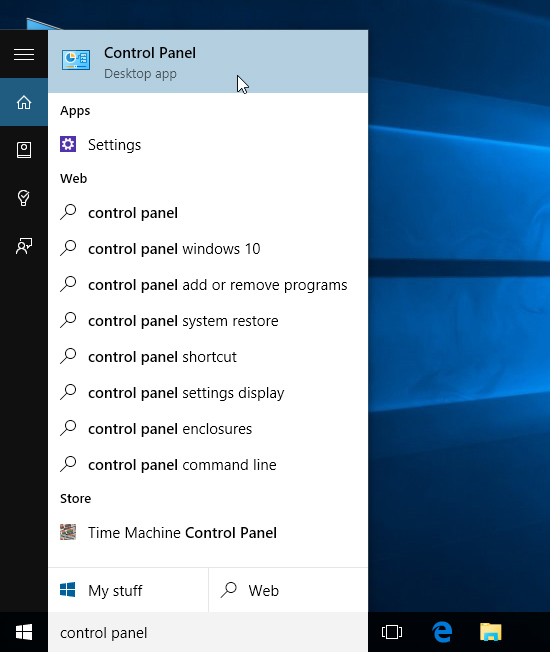
You can also use the Control Panel to adjust your settings, just like in earlier versions of Windows. However, there are some options that can only be accessed from the Settings app, like adding a new user. Because of this, you'll probably use the Settings app more often.

Shutting down your computer

When you're done using your computer, it's important to shut it down properly. To do this, click the Start button, then choose Power > Shut Down.


Getting started with Windows 10

Whether you're using a new computer with Windows 10 or an older machine that was recently upgraded, this lesson will show you the basics of using this version of Windows.

Signing in to Windows 10

You'll probably be asked to create a Microsoft account the very time you use Windows 10 (if you don't have one already). From this point on, whenever you turn on the computer you'll need to sign in to that account. To do this, type your password into the box and press Enter.


To learn more, you can review our lessons on Creating a Microsoft Account and Managing User Accounts and Parental Controls.

Navigating the desktop

Once you've signed in, the first thing you'll see is the desktop. You can think of the desktop as the main workspace for your computer. From here, you can view and manage your files, open applications, access the Internet, and much more.
Click the buttons in the interactive below to become more familiar with the Windows 10 desktop:


Opening applications

You'll use the Start menu to open programs on your computer, just like with previous versions of Windows. To do this, click the Start button in the bottom-left corner, then choose the desired application. If you don't see the one you want, select All apps to see a full list of applications. In the example below, we're opening OneNote.


Working with files

You'll use the File Explorer to manage your files and folders. To open File Explorer, click the File Explorer icon on the taskbar or double-click any folder on your desktop.


Upgrading to Windows 10

Unlike previous versions of the Windows operating system, Windows 10 is available as a free upgrade, as long as you have Windows 7 or Windows 8.1. This upgrade offer will expire after one year, ending sometime in August 2016.
However, Windows 10 is not available as a free upgrade for users with Windows RT, Windows Vista, or Windows XP. This is mostly because any computer with one of these operating systems simply wouldn't be able to run Windows 10 very well. If you're thinking about upgrading from an older system, we'd recommend purchasing a new computer that already has Windows 10 installed.

Things to consider before upgrading

System requirements

In order to upgrade your Windows 7 or 8.1 machine to Windows 10, you'll need to meet the system hardware requirements. Note that these are just the minimum requirements, so if you plan to use your computer for gaming or other demanding apps you may need a faster processor, more memory, or a more powerful graphics card to upgrade.

Software compatibility

In order for software to work, it has to be compatible with the operating system. Therefore, you may not be able to use all of your existing software if you switch to a different operating system. Before upgrading to Windows 10, ask yourself if there is any software on your computer you can't do without—and then do some research to find out if it is compatible.
If you are upgrading from Windows 8 or Windows 7, most of your apps should still work. However, if you're using an older version like Windows XP, there's a good chance some of your apps will not be compatible with Windows 10. A simple web search will often be enough to tell if an app will be compatible.

How to upgrade to Windows 10

If your computer is able to run Windows 10, you should see a small Windows icon near the lower-right corner of your taskbar. Click this icon to open the Get Windows 10 app, then follow the instructions to upgrade your computer.
If you don't see this icon, it either means you need to download to the most recent update for your operating system (specifically, Service Pack 1 for Windows 7 users or Windows 8.1 for Windows 8 users) or your computer does not meet the system requirements for Windows 10. Check out Microsoft's page on How to Upgrade to Windows 10 and its Windows 10 FAQ for more information.

Smartphones

A smartphone is a powerful mobile phone that is designed to run a variety of applications in addition to providing phone service. Smartphones are basically small tablet computers, and they can be used for web browsing, watching videos, reading e-books, and playing games.
Smartphones use touchscreens and operating systems similar to those used by tablet computers. Many of them use a virtual keyboard, but others have a physical keyboard, which allows the entire screen to be used for display purposes.
Internet access is an important feature of smartphones. Generally, you will need to purchase a 3G, 4G, or LTE data plan in addition to normal cell service. Smartphones can also connect to Wi-Fi when it is available; this allows you to use the Internet without using up your monthly data allotment.
3G, 4G, and LTE—sometimes called 4G LTE—are different types of networks for cell phones. 3G is the slowest of the three networks, but it is also the most widely used. 4G has the potential to be much faster than 3G, but most phones are not yet equipped to use it. 4G networks are also not available everywhere—you're more likely to be able to use one if you live in a big city. LTE is the most recent version of 4G. As more phones become 4G compatible, the number of people who use 4G and LTE networks will likely grow.