Pages

Showing posts with label Window 10. Show all posts

Saturday, December 12, 2015

Personalizing your desktop Window 10

Windows 10 makes it easy to customize the look and feel of your desktop. To access the Personalization settings, right-click anywhere on the desktop, then select Personalize from the drop-down menu. The Personalization settings will appear.


To change the font size:

  • If you have difficulty seeing the text on your computer, you can increase the font size. Increasing the font size will also increase the size of icons and other items on your desktop. Open the Settings app, then select System. 


  • The Display options will appear. Use the slider to select the desired item size. Note that a larger size may interfere with the way some items appear on the screen.
     
    1. Click Apply to save your changes. You may then need to restart your computer for these changes to take effect.

    To adjust ClearType settings:

    ClearType allows you to fine tune how the text on your computer looks, which helps improve readability.
    From the Display settings, select Advanced display settings. 

  • Choose ClearType text below Related Settings.  

  • The ClearType dialog box will appear. Follow the instructions, choosing the text that appears best to you.

  • When you're done, click Finish. The ClearType settings will be applied.


Tips for managing multiple windows

Windows 10 has several features that make it easier to multi-task and work with multiple windows at the same time.

Snap

Snap allows you to resize windows quickly, which is especially convenient when you want to see two windows side by side. To do this, click and drag the desired window to the left or right until the cursor reaches the edge of the screen, then release the mouse. The window will snap into place. To unsnap a window, simply click and drag the window down.

 Note: If you have more than one window open when snapping, you'll be to able to choose a window to snap to the other side of the screen automatically.

Flip

You can use Flip to switch between open windows. To do this, press and hold the Alt key on your keyboard, then press the Tab key. Continue pressing the Tab key until the desired window is selected.


Task view

The Task view feature is similar to Flip, but it works a bit differently. To open Task view, click the Task view button near the bottom-left corner of the taskbar. Alternative, you can press Windows key+Tab on your keyboard. All of your open windows will appear, and you can click to choose any window you want.


Virtual desktops

Instead of keeping everything open on the same desktop, you can move some of your windows to a virtual desktop to get them out of the way. This feature wasn't available in previous versions of Windows, and it's especially helpful for managing a lot of windows at the same time. To create a new desktop, open Task view, then select New desktop near the bottom-right corner.


Once you've created multiple desktops, you can use Task view to switch between them. You can also move windows between desktops. To do this, open Task view, then click and drag a window to the desired desktop.

To close a virtual desktop, open Task view and click the X in the upper-right corner of any desktop you want to close.


Showing the desktop

If you have a lot of windows open at the same time, it can be difficult to see the desktop. When this happens, you can click the bottom-right corner of the taskbar to minimize all open windows. Just click it again to restore the minimized windows.


Friday, December 11, 2015

Searching for files and apps window 10

To search for something on your computer—like a specific file or application—click the Start button, then start typing. Alternatively, you can press the Windows key on the keyboard to begin a search. In the example below, we're searching for a presentation file.

Adjusting your settings

You'll use the Settings app to change the most important settings on your computer, like your network and display options. To open the app, click the Start menu, then select Settings.

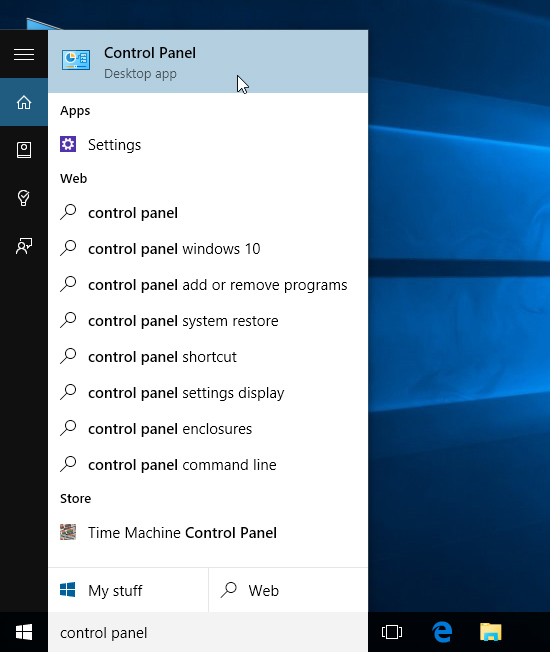
You can also use the Control Panel to adjust your settings, just like in earlier versions of Windows. However, there are some options that can only be accessed from the Settings app, like adding a new user. Because of this, you'll probably use the Settings app more often.

Shutting down your computer

When you're done using your computer, it's important to shut it down properly. To do this, click the Start button, then choose Power > Shut Down.


Getting started with Windows 10

Whether you're using a new computer with Windows 10 or an older machine that was recently upgraded, this lesson will show you the basics of using this version of Windows.

Signing in to Windows 10

You'll probably be asked to create a Microsoft account the very time you use Windows 10 (if you don't have one already). From this point on, whenever you turn on the computer you'll need to sign in to that account. To do this, type your password into the box and press Enter.


To learn more, you can review our lessons on Creating a Microsoft Account and Managing User Accounts and Parental Controls.

Navigating the desktop

Once you've signed in, the first thing you'll see is the desktop. You can think of the desktop as the main workspace for your computer. From here, you can view and manage your files, open applications, access the Internet, and much more.
Click the buttons in the interactive below to become more familiar with the Windows 10 desktop:


Opening applications

You'll use the Start menu to open programs on your computer, just like with previous versions of Windows. To do this, click the Start button in the bottom-left corner, then choose the desired application. If you don't see the one you want, select All apps to see a full list of applications. In the example below, we're opening OneNote.


Working with files

You'll use the File Explorer to manage your files and folders. To open File Explorer, click the File Explorer icon on the taskbar or double-click any folder on your desktop.


Upgrading to Windows 10

Unlike previous versions of the Windows operating system, Windows 10 is available as a free upgrade, as long as you have Windows 7 or Windows 8.1. This upgrade offer will expire after one year, ending sometime in August 2016.
However, Windows 10 is not available as a free upgrade for users with Windows RT, Windows Vista, or Windows XP. This is mostly because any computer with one of these operating systems simply wouldn't be able to run Windows 10 very well. If you're thinking about upgrading from an older system, we'd recommend purchasing a new computer that already has Windows 10 installed.

Things to consider before upgrading

System requirements

In order to upgrade your Windows 7 or 8.1 machine to Windows 10, you'll need to meet the system hardware requirements. Note that these are just the minimum requirements, so if you plan to use your computer for gaming or other demanding apps you may need a faster processor, more memory, or a more powerful graphics card to upgrade.

Software compatibility

In order for software to work, it has to be compatible with the operating system. Therefore, you may not be able to use all of your existing software if you switch to a different operating system. Before upgrading to Windows 10, ask yourself if there is any software on your computer you can't do without—and then do some research to find out if it is compatible.
If you are upgrading from Windows 8 or Windows 7, most of your apps should still work. However, if you're using an older version like Windows XP, there's a good chance some of your apps will not be compatible with Windows 10. A simple web search will often be enough to tell if an app will be compatible.

How to upgrade to Windows 10

If your computer is able to run Windows 10, you should see a small Windows icon near the lower-right corner of your taskbar. Click this icon to open the Get Windows 10 app, then follow the instructions to upgrade your computer.
If you don't see this icon, it either means you need to download to the most recent update for your operating system (specifically, Service Pack 1 for Windows 7 users or Windows 8.1 for Windows 8 users) or your computer does not meet the system requirements for Windows 10. Check out Microsoft's page on How to Upgrade to Windows 10 and its Windows 10 FAQ for more information.